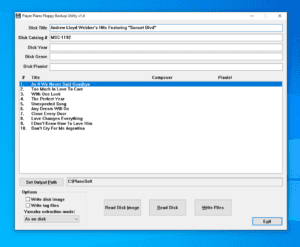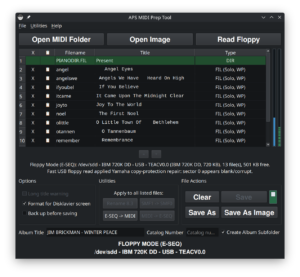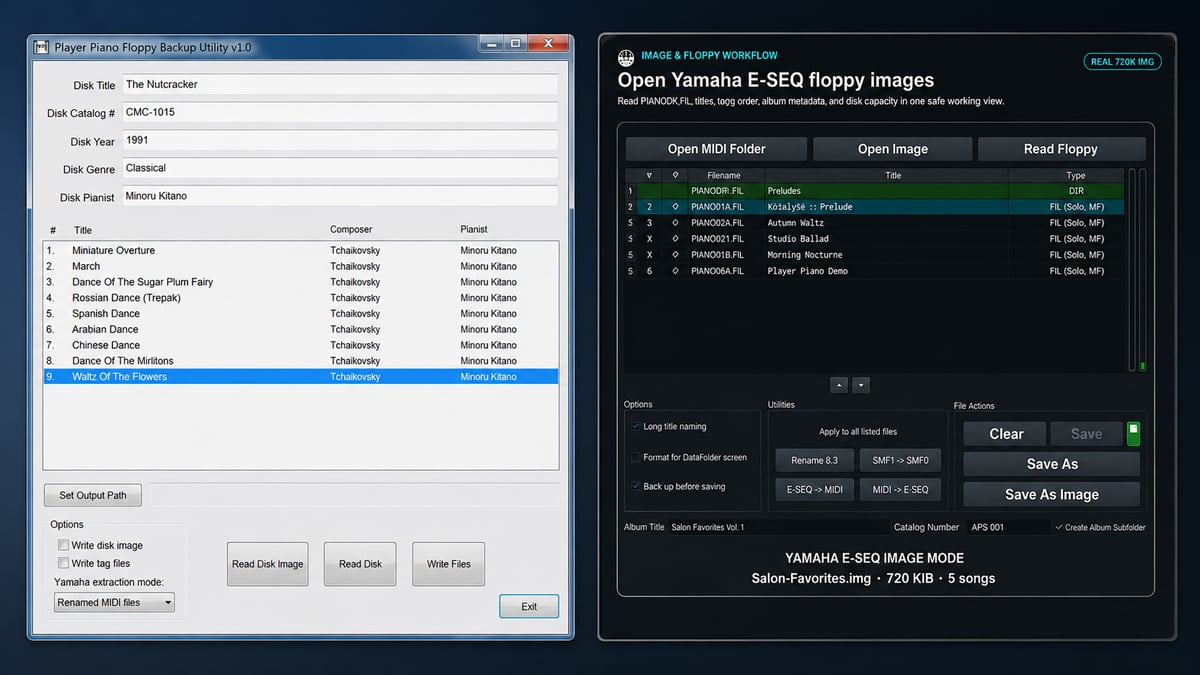
Both PPFBU and APS MIDI Prep Tool can read Yamaha PianoSoft and Disklavier floppy disks on a computer. PPFBU is a simple, established Windows backup utility. APS MIDI Prep Tool is a newer Windows and Linux application with additional recovery, conversion, editing, disk-image, and floppy-writing tools.
If you have an old Yamaha PianoSoft floppy and Windows says the disk is unformatted or needs to be formatted, do not format it. The disk may be perfectly good. Instead, use software that understands Yamaha’s floppy-disk formats.
This page compares two free utilities that can do that: Player Piano Floppy Backup Utility (PPFBU), written by Mark Fontana, and APS MIDI Prep Tool, which I developed for my own Disklavier service and preservation work.
Disclosure: I am the author of APS MIDI Prep Tool. PPFBU predates my program by many years and remains a useful piece of player-piano preservation software. This comparison is intended to explain where the two programs overlap, where they differ, and which one makes the most sense for a particular job.
Versions checked for this comparison: PPFBU 1.4 and APS MIDI Prep Tool 0.8.0.
Quick comparison: PPFBU vs. APS MIDI Prep Tool
| Feature | PPFBU | APS MIDI Prep Tool |
|---|---|---|
| Read Yamaha PianoSoft floppies | Yes | Yes |
| Works with files on your computer | No | Yes |
| Read Disklavier E-SEQ | Yes | Yes |
| Convert E-SEQ to MIDI | Yes | Yes |
| Convert MIDI back to E-SEQ | No documented workflow | Yes |
| Create an archival disk image | Yes | Yes |
| Open existing disk images | Yes | Yes |
| HFE / floppy-emulator workflows | No | Yes |
| Nalbantov / Gotek preparation | No | Yes |
| Write a physical floppy | No | Yes |
| Edit song titles | Yes, during extraction | Yes |
| Reorder or modify a disk | No | Yes |
| Generate / edit PIANODIR.FIL | Reads | Reads + Writes |
| MIDI Type 1 to Type 0 conversion | No | Yes |
| Damaged-disk recovery | Read-error handling | Advanced recovery and imaging workflows |
| Fix and alter pedal behavior | No | Yes |
| Play back MIDI & E-SEQ files | No | Yes |
| Remove or alter MIDI channels | No | Yes |
| Greaseweazle support | No | Yes |
| PianoDisc support | Yes | Yes, for supported formats |
| Windows | Yes | Yes |
| Linux | Not officially supported | Yes |
| Open source | No | Yes |
| Price | Free / donation supported | Free / donation supported |
What is PPFBU?
PPFBU stands for Player Piano Floppy Backup Utility. It was written by Mark Fontana specifically to archive music from older player-piano floppy disks.
The program supports Yamaha Disklavier PianoSoft, PianoSoft Plus, and Disk Orchestra Collection disks as well as PianoDisc floppy disks. It can read a physical floppy, preserve a disk image, extract the original files, or convert Yamaha performances into standard MIDI files with more descriptive filenames.
Its great strength is simplicity: if your goal is simply “put this Yamaha floppy into my Windows computer and save the songs”, PPFBU was designed around exactly that workflow.

PPFBU’s interface reflects its focused purpose. You insert a floppy, click Read Disk, review or correct the album and song information, and then write the extracted files to your computer.
What is APS MIDI Prep Tool?
APS MIDI Prep Tool began with the same basic problem. Its goal is getting music safely on and off old Yamaha floppy disks, but grew into a broader Disklavier preservation and preparation utility.
It can read physical Yamaha PianoSoft and Disklavier floppies, open disk images, recover files from troublesome media, convert Yamaha E-SEQ to MIDI, convert MIDI back to E-SEQ, edit titles, create or repair supporting disk data, and save the result back to a folder, floppy image, or physical disk.

APS also includes workflows that did not exist in the original PPFBU use case, including Nalbantov and Gotek floppy-emulator preparation, HFE and IMG disk images, PIANODIR.FIL generation, MIDI Type 1 to Type 0 conversion, MIDI inspection and playback, and Greaseweazle-assisted floppy imaging and recovery.
Which program is easier for simply backing up PianoSoft disks?
If you have a Windows computer, a healthy floppy disk, and one goal—extract the performances and save them as MIDI or E-SEQ files—PPFBU remains very good at what it was designed to do.
The workflow is deliberately narrow. PPFBU reads the disk, lets you enter or correct album and song metadata, and writes the extracted files. It can also save an image of the original disk so that you have a more complete archival copy.
For someone archiving a collection of ordinary, readable PianoSoft disks on Windows, that simplicity can be an advantage rather than a limitation.
When does APS MIDI Prep Tool make more sense?
APS MIDI Prep Tool is more useful when the job extends beyond a straightforward extraction.
- You want to use Windows or Linux.
- Your files are on either a floppy disk or just on your computer.
- The floppy is aging, damaged, or difficult to read.
- You want to preserve a full disk image before extracting songs.
- You need to convert E-SEQ to MIDI or MIDI back to E-SEQ.
- You need to create, inspect, or repair PIANODIR.FIL.
- You are processing a large collection and want more inspection and batch-processing tools.
- You want to change song titles or filenames.
- You need MIDI Type 0 for an older Disklavier.
- You want to prepare an HFE or IMG image for a Nalbantov or Gotek floppy emulator.
Those are the situations that led me to build APS MIDI Prep Tool. Over years of servicing Disklaviers, I found myself using a collection of separate programs and scripts for extraction, conversion, title repair, disk-image work, and emulator preparation. APS is my attempt to put those workflows into a single program.
Reading damaged or troublesome Yamaha floppy disks
Old player-piano floppy disks are now old enough that media failure is becoming a normal part of preservation work.
PPFBU includes handling for disk read errors, and later versions specifically improved its handling of troublesome Yamaha media. For many disks, that is all that is necessary.
APS MIDI Prep Tool provides additional recovery paths. It can attempt a normal floppy read first and, when necessary, move into image-based recovery. More difficult disks can also be captured using Greaseweazle, allowing lower-level preservation work before attempting to extract the music.
Important: If Windows says your Yamaha PianoSoft disk must be formatted before it can be used, click Cancel. Do not format an original disk just because File Explorer cannot read it.
For a step-by-step walkthrough, see how to read a Yamaha PianoSoft floppy disk on a computer and extract the MIDI files.
E-SEQ to MIDI conversion
Both programs can solve one of the most common Disklavier preservation problems: a Yamaha floppy contains E-SEQ performances rather than ordinary Standard MIDI files.
PPFBU can extract Yamaha performances as renamed MIDI files, converting the E-SEQ material during the backup process. It can alternatively preserve the performances as E-SEQ.
APS MIDI Prep Tool also converts E-SEQ to Standard MIDI, but adds the reverse workflow: compatible MIDI files can be converted back to Yamaha E-SEQ when preparing media for an older Disklavier.

A feature PPFBU still handles differently: MID2PianoCD
There is an important PPFBU feature that should not be confused with APS MIDI Prep Tool’s audio-rendering functions.
PPFBU can create tag files for use with Mark Fontana’s companion MID2PianoCD program. That software can create specially encoded audio files intended for compatible player-piano playback systems.
APS MIDI Prep Tool can render MIDI and E-SEQ performances to ordinary WAV or MP3 audio for listening and reference, but that is not the same thing as MID2PianoCD’s player-piano control-audio workflow. If that particular workflow is your objective, PPFBU and MID2PianoCD remain worth investigating.
What about Nalbantov and Gotek floppy emulators?
This is one of the clearest differences between the programs.
PPFBU was written primarily to preserve music from floppy disks. APS MIDI Prep Tool can also prepare music for virtual floppy disks used by USB floppy emulators.
APS can work with supported HFE and raw disk-image formats, create sets of virtual disks, add or remove songs, convert files as necessary, generate Yamaha directory information, and prepare images for systems such as Nalbantov and Gotek.

So which one should you use?
Choose PPFBU if…
You use Windows.
Your floppies are readable.
You’re mainly archiving PianoSoft or PianoDisc disks.
You want a simple, focused program.
You want the MID2PianoCD tagging workflow.
Choose APS MIDI Prep Tool if…
You use Windows or Linux.
Your disks need additional recovery tools.
You want bidirectional MIDI / E-SEQ conversion.
Your goal is to edit or create disks and images.
You use Nalbantov, Gotek, HFE, IMG, or Greaseweazle workflows.
Your files require adjustments to channels, pedal behavior, or MIDI type.
For a straightforward Windows backup, PPFBU is still a perfectly reasonable choice. For more complicated Disklavier preservation, conversion, repair, and floppy-emulator work, APS MIDI Prep Tool is designed to cover substantially more of the workflow in one application.
Can a normal computer read a Yamaha PianoSoft floppy?
Sometimes, but you should not assume File Explorer is the correct test. Yamaha used several disk and file arrangements across different generations of PianoSoft and Disklavier media. A disk that appears unreadable or “unformatted” to the operating system can still contain perfectly usable player-piano data.
The safest approach is to use a compatible floppy drive and software designed to recognize these disks, such as PPFBU or APS MIDI Prep Tool.
Can I use an ordinary USB floppy drive?
Often, yes. PPFBU officially supports both internal and USB floppy drives on Windows. APS MIDI Prep Tool can also use compatible physical floppy drives, although exact results depend on the disk format, drive hardware, operating system, and condition of the media.
For difficult or unusual disks, a traditional internal floppy mechanism connected through a device such as a Greaseweazle can provide recovery options that a basic USB floppy drive cannot.
Does PPFBU still work on modern Windows?
The official PPFBU page lists Windows 10, 8, 7, Vista, and XP. Windows 11 is not listed because the current PPFBU release predates it. That does not necessarily mean it will not run, but Windows 11 is outside the operating systems specifically documented by the author.
Is APS MIDI Prep Tool free?
Yes. APS MIDI Prep Tool is free and open-source software. Packaged releases are available for Windows and Linux, and the source code is published on GitHub. Voluntary contributions help support continued development but are not required to use the program.
Related Yamaha Disklavier floppy-disk guides
- How to read a Yamaha PianoSoft floppy disk and extract MIDI files
- Backing up Yamaha Disklavier floppy disks
- Yamaha Disklavier, MIDI, E-SEQ, and floppy-disk tools
- Copying a Yamaha PianoSoft floppy to a Nalbantov USB stick
- APS MIDI Prep Tool documentation and download information
PPFBU is written by Mark Fontana and is not affiliated with Alex’s Piano Service LLC. APS MIDI Prep Tool is an independent compatibility utility and is not affiliated with, sponsored by, or endorsed by Yamaha, Disklavier, PianoSoft, PianoDisc, Nalbantov, Gotek, or Greaseweazle. Product and company names are used only to identify compatible formats, hardware, and software.