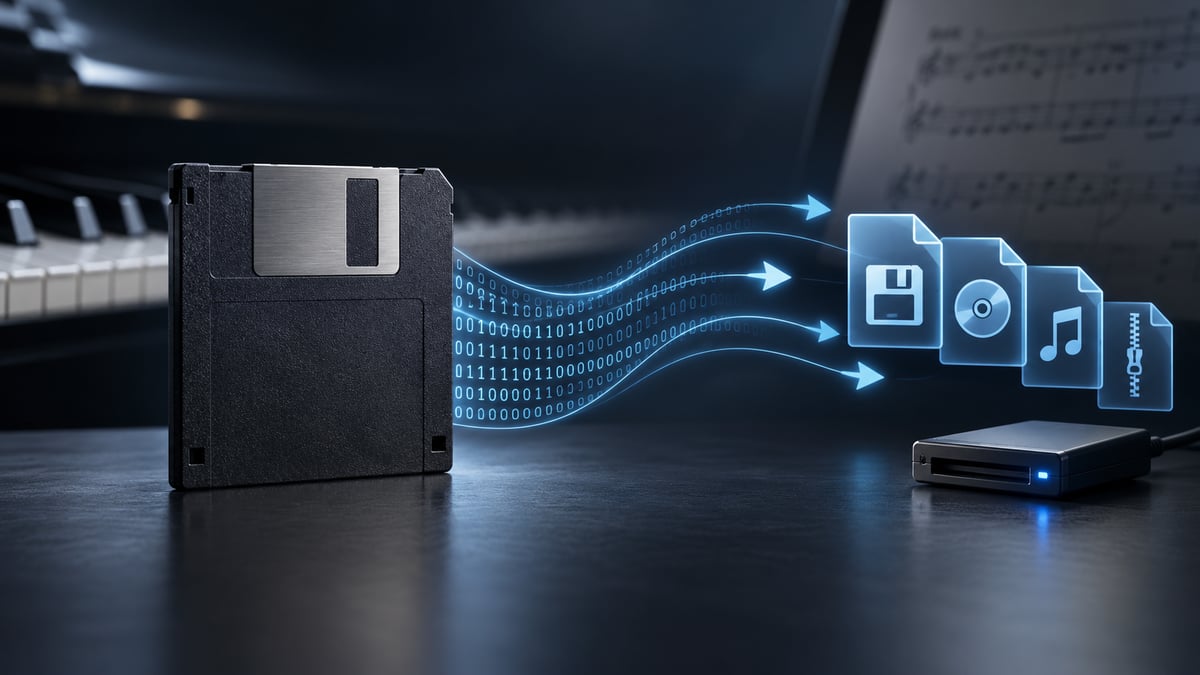
Floppy Disk Image Conversion Tool
Floppy Disk Image Converter
Convert a disk image to another format, or extract its files to a ZIP.
All uploaded files are kept no longer than 24 hours. See Privacy Policy for more details.
All uploads are scanned for viruses.
Whether you’re working with a Nalbantov USB floppy disk emulator, a Gotek, or some other system, you’re in the right place! I built this online Floppy Disk Image Converter around Greaseweazle tools to take some of the friction out of disk-image conversions.
This tool does work with Yamaha PianoSoft images, and can even extract files from them using the ZIP option.
How can I tell which options to select?
Are you converting a BIN file from Player Piano Floppy Backup Utility (PPFBU) to an HFE for a Nalbantov? Select HFE as the output, and leave Image Format set to IBM 720 DD.
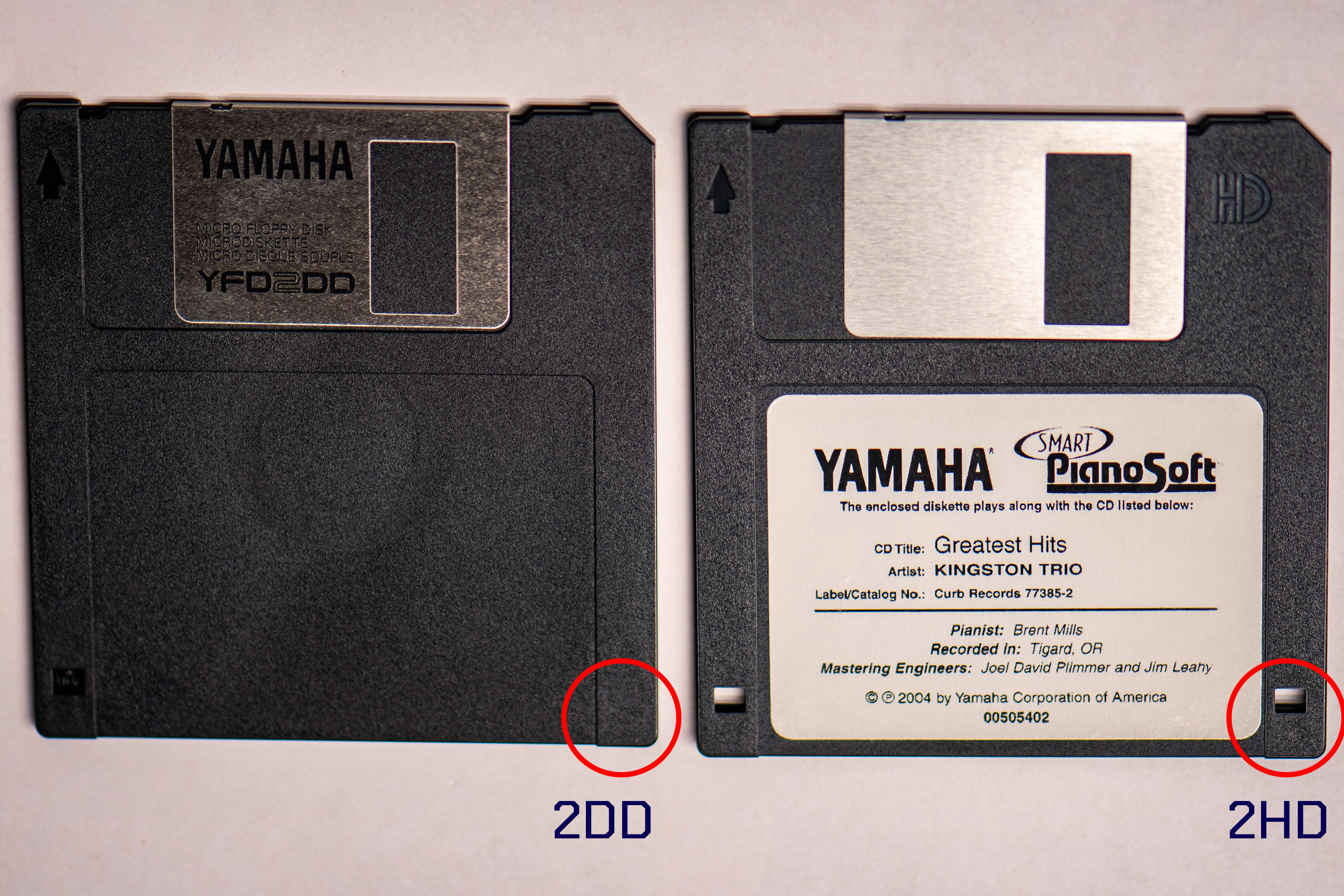
For Yamaha Disklaviers using PianoSoft disks, you typically want the default IBM 720 DD option. Some later Mark III & IV disks use the IBM 1440 HD option instead, but the vast majority of early PianoSoft inventory uses IBM 720 DD disks.
If you’re performing other conversions on this tool, and you know what you’re doing, check the Advanced checkbox for a full menu of image formats and output files.
ZIP extraction works when the disk image contains a readable supported filesystem. For Yamaha PianoSoft/E-SEQ images, extraction is supported where the tool can read the disk directory and song data. Other formats may still convert between image containers even when file extraction is not possible.
What can the tool do?
Convert Yamaha E-SEQ to MIDI
For Yamaha PianoSoft and other E-SEQ disk images, selecting ZIP as the output does more than simply extract the files. When E-SEQ song files are detected, the tool can offer to convert them into Standard MIDI files and include those converted MIDI files in the downloaded ZIP archive.
This is especially useful for older Disklavier floppy disks, since it lets you go from a disk image directly to a folder of usable MIDI files without needing a separate Windows utility. This functionality is supported by APS MIDI Prep Tool.
Convert IMG to HFE or HFE to IMG
Move images seamlessly between IMG and HFE formats and download a ready-to-use image. IMG is a very common format used by emulators such as the Gotek, and also by virtual machines such as VirtualBox, VMware, and QEMU. Nalbantov, as well as some other emulators, use HFE files instead.
Extract Files from IMG or HFE
Extract files from many DOS/FAT floppy images and receive them in a ready-to-download ZIP archive. If you have an old floppy disk image or have downloaded one from the internet, this tool will let you read the contents! File extraction works on most IBM formatted disks that do not have copy protection.
Converting SCP to IMG or SCP to HFE
Convert supported flux/image formats such as SCP into IMG or HFE when the disk can be decoded. Some damaged, copy-protected, or nonstandard disks may preserve well as flux but may not extract cleanly.
Other Formats and Options
If you click the Advanced checkbox, you’ll be given access to the full range of types and formats available.
How does the tool work?
Keir Fraser’s Greaseweazle is the gold-standard toolkit for anyone who cares about magnetic-media preservation. The open-source combo of plug-and-play hardware and the cross-platform gw host tools lets you sample floppy disks at the raw flux level, then read, write, or convert them. The tool can convert between a wide range of supported formats, including IMG, HFE, SCP, ADF, and others. Support varies by format and direction; some image types are import-only, read-only, or proprietary.
Behind the scenes, this tool is powered by Greaseweazle’s conversion tools. With the right drive and media, Greaseweazle can often preserve disks that ordinary USB floppy drives cannot read. Flux tools like Greaseweazle can even preserve copy-protected disks at the magnetic level, although extracting files depends on whether the filesystem is readable.
Greaseweazle’s active GitHub community means fresh features (like HFEv3 support and flux visualization) land fast, and its permissive license invites tinkerers to extend or embed it in their own projects—exactly the kind of maker-friendly ethos we love.
Please also see my article on using a Greaseweazle to back up Yamaha PianoSoft disks for your Disklavier. This is still my preferred technique, whenever it’s an option.
What formats and extensions does this work with?
Because this is using Greaseweazle’s conversion tools, it’s compatible with the formats below. Just check the Advanced checkbox and they’ll appear. Note that this tool won’t convert some proprietary formats. Some formats, notably D88, DCP, DIM, FDI, and NFD (PC-98), are read-only, meaning you can convert from them, but not to them.
|
| System | Formats |
|---|---|
| acorn |
|
| akai |
|
| amiga |
|
| apple2 |
|
| atari |
|
| atarist |
|
| coco |
|
| commodore |
|
| datageneral |
|
| dec |
|
| dragon |
|
| ensoniq |
|
| epson |
|
| gem |
|
| hp |
|
| ibm |
|
| kaypro |
|
| mac |
|
| micropolis |
|
| mm1 |
|
| msx |
|
| northstar |
|
| occ1 |
|
| olivetti |
|
| pc98 |
|
| raw |
|
| sci |
|
| sega |
|
| thomson |
|
| tsc |
|
| zx |
|
Spread the word
Finding this handy? Share the link on r/retrocomputing, Vogons, or with your synth-tech friends—every backlink helps other tinkerers discover the tool.
You can download this tool or view the source code on GitHub. Licensed under Apache 2.0.

I plan to purchase a Nalbantov Yamaha Disklavier N-100 Emulator for my Controller DKC5R (MX80). I would like to send you 5 Yamaha Disklavier PianoSoft Disks to transfer to a USB drive that I would also like to buy. Please let me know how to do that. What is the total cost for the service, USB drive and shipping? I will pay with Visa.
Hello Spencer! I just replied to you by email. Thank you!
Tried using this to convert a PC98 NFD image to D88. Seems to get stuck on 18% processing. I’ve tried it in both Safari and Chrome. For image format, I’ve tried the various pc98 options and they all get stuck the same place.
Hello Jason! So curiously, it was an internal error. It appears the Greaseweazle conversion tools are actually unable to produce D88 images. They’re listed on the official wiki as supported but “import-only” types: https://github.com/keirf/greaseweazle/wiki/Supported-Image-Types. I apologize for the ambiguous error! I’ve removed them from the list as a conversion target. It looks like there are limited options for D88. It’s easy enough to read and convert from it, but not so easy to write it.
Thanks for checking. Yeah, I keep searching for a way and coming up empty, at least on a Mac. Might look into getting some kind of Windows VM up and running to run a Windows tool I had found.
I have some Ensoniq EPS files in a .EDE format and your tool cannot convert them to .IMG format – how can I easily do this? I’ve researched and the programmer install and instructions for conversion are really difficult to understand (I’m a musician not a computer programmer!) Any help to easily transform these old flopply disk sounds into the .IMG format that the new drive on my keyboard can read – most appreciated!
Hello Justin! Thank you for reaching out. If you would, please do a Shift + Refresh first to clear your browser cache, then try it again using the settings exactly as pictured below. Please consider the EDE support a beta/trial for the moment, but it did work with the couple of files I just tested.
Hopefully that will give you a simple way to convert the .EDE files into an .IMG format that your new drive can read. If it still gives you trouble, feel free to send me an example file and I can take another look.
Thank you!
Thanks, it’s still not working – I have a EPS classic not a 16, is this why? I wouldn’t think it would be a problem. Maybe I can send to you and you can try? I can’t upload a photo of the error but it says : Conversion failed: ERROR: Could not convert EDE to IMG. Verify this is a valid Ensoniq EPSEPS16 EDE disk image.
Yes, please send the file to [email protected]. I will explore some options. Thank you!
Edit (4/23/26): These files were a slightly older format, and I added support for them to the tool on this page.
Alexander,
I have a Yamaha Clavinova CVP-65 in which I have installed a Gotek USB floppy emulator with the Artery AT32 hardware. It displays hXc when turned on so I believe I have it flashed correctly. I would like to convert all 16 of my original Yamaha and copied 3.5 disks to a USB stick. My Windows 11 computer recognizes the A 3.5 disk drive that was in the Yamaha, but it will not read any of the disks, always instructing me to insert a disk in drive A. All disks worked properly in the Yamaha. I have downloaded HxCFloppyEmulator and PPFBU software but have had no luck reading any of the disks, and I don’t know what settings to set in the HxC program, other than IBM 720 DD. Any advice or suggestions on getting the disk drive to recognize the disks/files so I can convert? Thanks for the opportunity to inquire.
Hello Brad! Thank you for reaching out.
You might try my APS MIDI Prep Tool. It has some limited support for Clavinova disks and might be able to read them directly, but perhaps the most useful feature here is that it can also make a raw image of a floppy disk.
I would start by making an untouched backup image of each disk:
.IMGfile to your Gotek USB stick.If your Gotek setup accepts IMG files that may be all you need. If it wants HFE files instead (which HxC is sometimes set to use), you can use the tool on this page to convert the IMG to HFE afterward. By saving it as an image directly to the USB stick, you skip having to open the disk and read the files individually.
If you have numerical displays on your Gotek (like the two or three digit varieties), then it will expect to use indexed mode and all the filenames should be named like this:
DSKA0000.IMG
DSKA0001.IMG
And so forth, with the numbers matching what you will see on the device display (000, 001, etc.). If you have that little OLED display where you can read filenames, then you don’t have to worry about this.
The screenshot above shows the Image Disk tool in APS MIDI Prep Tool.
Thank you!
Alexander,
Thanks for the reply. I’m still having no success getting my floppy drive to read any disks at all, so I was unable to use any of the conversion programs I have downloaded. I put it back in the CVP-65 just to see if that changed anything. I was able to format a new blank disk, but it wouldn’t give me any options other than format. It didn’t read the loaded disks I have, which surprised me as it has never failed to read and play those. I have no reason to think that my disks are bad. I’ve never had any issues with any of them. Is there anywhere I could download sample IMG or HFE files just to load them on a USB stick and check whether my Gotek will read and play them? Also, I do have a midi file collection. Is it possible to convert multi-part midi files to IMG or HFE that will be compatible with the Yamaha? I may have to resort to finding someone who can convert my old disks to Gotek compatible files if I can’t get my Yamaha 3.5 floppy working. One side note on the Yamaha floppy drive – depending on which way I attach the 34-pin USB adapter I have to connect/power it, It will either list as a TEAC or an NEC drive in Device Manager. I don’t know that that means anything, it’s just that I don’t know if there’s a correct way to plug my adapter in and noticed that it reads differently depending on how I do connect it. Either way, it always says “insert disk in drive A” anytime I try to read a disk on it. And is it possible that the $15 USB adapter is the problem, or that I somehow wrecked the floppy drive by connecting the 34-pin backwards?? I bought it for the sole purpose of converting the old disks and then most likely never having use for the floppy drive again. My 1st priority is finding out if I got the Gotek flashed right and then worry about the disk conversions later. Thanks for your time,
Brad
Hi Brad,
Yes, the USB adapter could be the problem. Some USB-to-floppy adapters don’t work well with anything but standard PC-formatted disks. Sometimes double-density disks are also not supported, depending on the adapter, although this seems to be mostly luck rather than cheapness, per se. Even if the drive and disk are both good, Windows itself won’t be able to open them directly in File Exporer, so you’ll need to control the drive using third-party software like APS MIDI Prep Tool or PPFBU that reads the disk raw. Presuming the floppy disk drive chooses to recognize the disks at all, of course.
The TEAC/NEC behavior you are seeing with the USB adapter is odd, but it’s very unlikely that you wrecked the floppy drive simply by connecting the cable backwards. Most of us who have worked with floppy drives have done that at some point, and I haven’t seen any damage from that personally. Typically the drive just does not work until the cable is corrected.
The CVP-65 uses, I believe, only double-density (720 KB) disks. I don’t know how it will react with high-density (1.44 MB) disk images. You can try adding blank 720 KB DD disk images and seeing if it can do more than just format those: https://cloud.alexanderpeppe.com/s/Gg6X5ydTzLWssSy
One good piece of news is that if the Clavinova can see the disk and format it, the Gotek is reading the IMG file.
I can certainly image the disks for you as a service if you decide you would rather not fight the hardware. I can make Gotek-compatible images from the original disks and, where possible, also extract the individual files. Just send me an email and we can get started. I can search through my archives and see if I have any playable, shareable images that will work with the CLP-65, but we’d have to correspond about that over email.
Thank you!