If your keyboard isn’t working and you’re considering having it repaired by a service center, you might want to try a factory reset first. I’ve had quite a few customers come in with apparently mute keyboards that, in fact, just needed a factory reset.
Your Yamaha might have a setting that was accidentally changed and is now difficult to find. It might also have corrupted memory after a sudden power loss, an untimely unplugging, or even a static shock. A factory reset can clear that corrupted state and restore normal operation.
Yamaha uses a handful of repeatable patterns—either a menu-driven reset from the screen or a power-on key hold. Below I’ve grouped the most common procedures.
Before you reset: Back up anything important. The scope varies by model: some procedures initialize only backed-up settings, while others can erase user songs, registrations, styles, or files.
Quick answer
Yamaha factory reset: fast lookup
Find your Yamaha family below and start with the least destructive method. These quick directions cover the most common Yamaha factory-reset patterns; the detailed steps and exceptions remain farther down the page.
Most common first try
With the instrument off, hold the highest (rightmost) white key while turning the power on. Use this only when your model family below lists the power-on method.
Power-on reset
P-45, P-125, P-145, P-223, P-225
Start here: Turn the piano off. Hold the highest white key while turning it on.
This generally initializes backed-up parameters rather than performing a complete file wipe.
Menu or power-on reset
CLP and YDP digital pianos
Start here: If the piano has a display, check System or Utility for Factory Set/Reset. Otherwise, use the highest-key method only when documented.
The correct method varies by generation, so the exact model manual takes priority.
Menu reset preferred
CVP Clavinovas
Start here: Open Utility or System, then look for Factory Reset/Backup.
Menu options may let you reset settings without erasing every type of user content.
Menu reset
PSR-SX, Genos and PSR-A5000
Start here: MENU → Utility → Factory Reset/Backup.
Review the selected reset categories before you choose Execute.
Initialize all data
MONTAGE, MONTAGE M, MODX and MODX+
Start here: UTILITY → Settings → System → Initialize All Data.
This is a broad initialization. Save all important user data first.
Job menu
CP73/88, YC61/73/88 and CK61/88
Start here: MENU → Job → Factory Reset.
Do not interrupt power while the reset is running.
Use with care
DGX/YPG, PSR-E/YPT and NP-V
Start here: The highest white key clears backup data. The highest white key plus the top three black keys performs Flash Clear.
Flash Clear can also erase transferred songs and styles. Use the stronger reset only when necessary.
Check the exact manual
Older or unlisted Yamaha models
Start here: Find the procedure for the exact model rather than borrowing a key combination from a different instrument.
Do not guess at test-mode combinations; undocumented functions can erase data without warning.
Important: These are common Yamaha patterns. The instructions for your exact model always take priority, especially when the reset menu offers a choice of settings, user memory, songs, registrations, styles, or files.
Hold the highest (rightmost) white key while powering on
This is common on many P-series, CLP/YDP, NP/Piaggero, and portable PSR/YPT models. It is not universal, especially on instruments with a display or a dedicated Utility/System menu.
If a Yamaha Clavinova or portable keyboard isn’t producing any sound, or has any other unexplained misbehavior, I follow this procedure first. This is the most common way to perform a factory reset on Yamaha Clavinovas and portable keyboards, according to Yamaha’s public FAQs. Note that it does not work on all of their instruments, but it does work on many.
With the power off, hold the rightmost white key (often the highest C, depending on model) while turning the instrument on. This usually initializes backed-up settings. It does not necessarily erase user songs or transferred files, but the exact behavior varies by model.
Yamaha P-Series factory reset
Applies to many Yamaha P-series portable digital pianos, including the P-45, P-125/P-125a, P-145/P-145BT, and P-223/P-225. Higher-end models with a display, such as the P-515/P-525, may use a menu-based reset instead.
Method A: Power-on reset (highest key/rightmost white key)
- Turn the instrument OFF.
- Press and hold the highest key on the keyboard (the rightmost white key).
- While holding the key, turn the power ON.
- Wait for initialization to complete, then release the key.
Do not cut power during initialization. If your model has a screen or status lights, wait until it finishes before turning it off again.
Method B: Menu-based Factory Reset (models with System/Utility menus)
Some higher-end P-series instruments include an on-board menu option that can be labeled Factory Reset, Factory Set, or similar. If your P-series has a display and a Menu/Utility/System area, check for a reset command there.
If a menu reset exists on your model, it may be more comprehensive than the “highest key at power-on” method. Back up user content first whenever possible.
Yamaha CLP-Series factory reset
Applies to Yamaha Clavinova CLP digital pianos (CLP-xxx). Depending on the generation, a CLP may use a menu-based reset, a highest-key power-on reset, or both.
Method A: Menu-based Factory Set / Factory Reset (models with System Menu)
- Open Menu (or System Menu, depending on model).
- Locate Backup (or a similar settings section).
- Select Factory Set / Factory Reset and choose Execute.
- Do not power off until the operation completes.
On many CLP models, this primarily resets backed-up/system settings. Depending on the model and reset type, user songs may be preserved. Always confirm for your exact model in the manual.
Method B: Power-on reset (rightmost white key)
- Turn the instrument OFF.
- Press and hold the rightmost white key (often the top C on 88-key models).
- While holding the key, turn the power ON.
- Wait for initialization to complete, then release.
The rightmost-key method is common, but not universal. If your CLP has a screen, check for an on-screen message confirming initialization. If nothing happens, stop and consult your model’s manual.
Yamaha CVP-Series factory reset
Applies to Yamaha Clavinova CVP digital pianos (arranger-style Clavinovas). CVP models commonly provide a menu-based Factory Reset/Backup area; some also support a more limited power-on reset.
Method A: Menu reset (Factory Reset/Backup menu)
If your CVP has an on-screen menu system, look for a section labeled Utility or System, then Factory Reset/Backup (wording varies). This approach is typically best because it may allow more granular resets (settings-only vs. user memory content).
Method B: Power-on reset (rightmost white key)
- Turn the instrument OFF.
- Press and hold the rightmost white key (often the top C on 88-key models).
- While holding the key, turn the power ON.
- Wait until the reset completes, then release.
On CVP instruments, menu-based reset options can be more comprehensive than the power-on method. If you have important custom registrations, user styles, MIDI songs, or audio files, back up first.
Other menu-based factory resets
The factory reset option is accessible through internal menus on many models. Names differ by family, but the idea is the same. These screens typically let you choose scope (system setup, user memory, files) and sometimes let you create backups first.
The steps below are compiled from Yamaha manuals and public support material, supplemented by technician references where model-specific documentation is difficult to locate. I’ve personally executed some of these, but not all. Please reach out if you have anything to add!
PSR‑SX / Genos / pro arrangers
MENU → Utility → Factory Reset/Backup.
PSR‑S670 and similar
FUNCTION → I → TAB to SYSTEM → RESET; check desired items and press [7]/[8] (FACTORY RESET EXECUTE). A power‑on reset (holding the highest white key while powering on) also exists for system setup.
PSR‑A5000
MENU → Utility → Factory Reset/Backup.
MONTAGE / MONTAGE M / MODX / MODX+
UTILITY → Settings → System → Initialize All Data.
CP73/88 (stage pianos)
MENU → Job → Factory Reset.
YC61/73/88 (stage keyboards)
MENU → Job → Factory Reset.
CK61/88 (stage keyboards)
MENU → Job → Factory Reset.
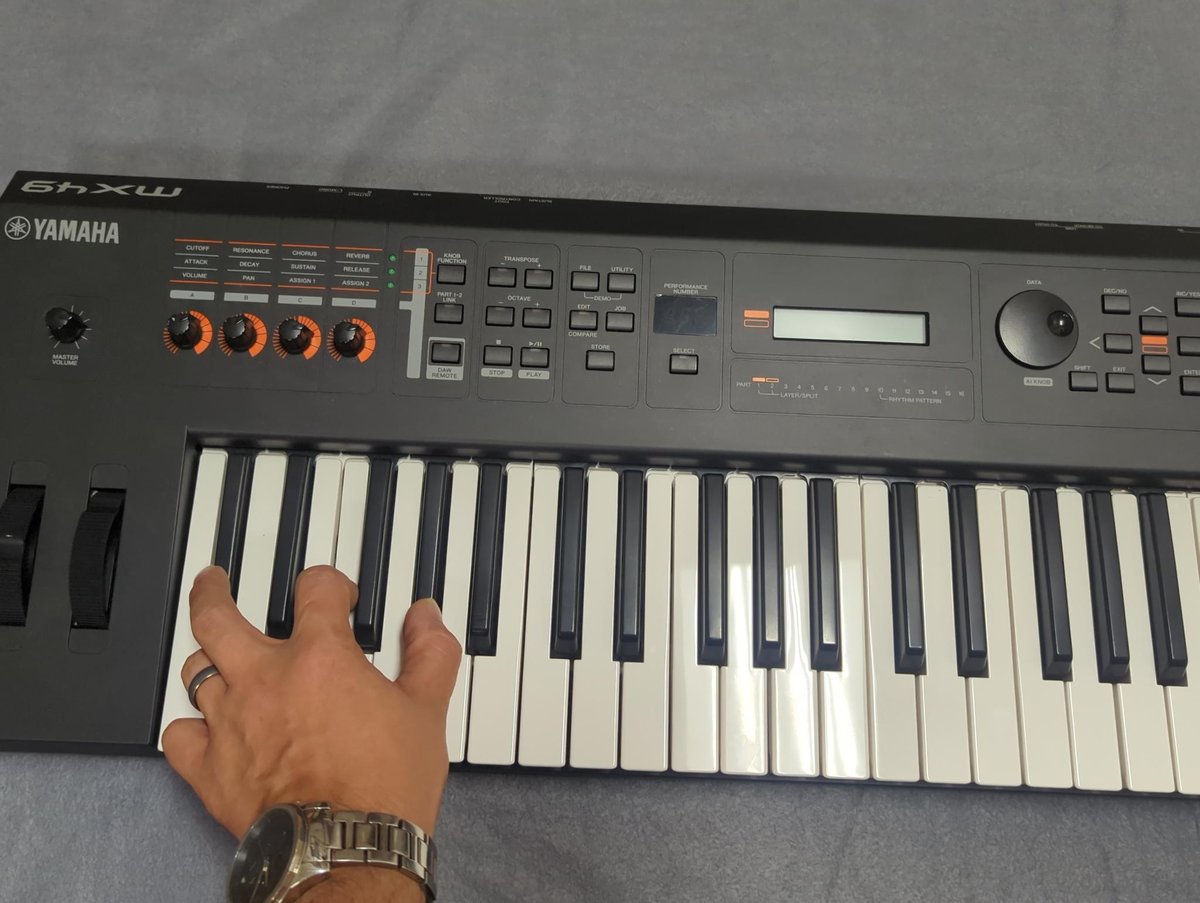
MX49/MX61/MX88
UTILITY → JOB → 02: FactrySet (as labeled)
SY55
With the power on, press and hold SELECT + EXIT + UTILITY to enter Test Mode. Press SELECT, then +1/YES to proceed. Use PAGE> until you see J31: Factory Set, then press ENTER, +1/YES to execute.
Power‑on + the highest white key plus the three highest black keys (“Flash Clear”)
This applies to most keyboards in the DGX/YPG series, PSR‑E/YPT series, and NP‑V series.
This is the common Yamaha method to clear files in flash—User Songs and Styles transferred from a computer or USB—in addition to resetting backup data. With the power off, hold the top white key and the top three black keys, then power on.
Power‑on + the highest white and highest black (“All Memory Clear”)
On some early 2000s portables (e.g., DGX-202), Yamaha documented an All Memory Clear by holding the top white and the top black at power-on (“All Mem CLr”). Holding only the top black cleared just loaded song data. Check the model’s manual for the exact labeling.
Test mode resets
Many Yamaha digital instruments have a Test Mode that’s accessible by pressing some combination of keys and buttons while powering on the instrument. You do not usually need to enter Test Mode to perform a factory reset.
On some instruments, service-level Test Mode includes an initialization or factory-set command. On certain older models, it may be the only documented option. If you need to use Test Mode, the only certain instructions will come from the service manual.
On some Yamaha keyboards, it’s accessed by pressing the C#, F, and G# two octaves below middle C, while powering on the instrument. How it’s accessed can vary considerably between instruments, and sometimes this information isn’t available to the public.
Use test mode at your own risk! Undocumented service functions can erase content without warning.

What I’m really trying to is retrieve the performance piano which somehow I lost
Hello John, and thank you for the comment! In general, a factory reset can restore original factory presets, but it usually does not recover user-created or user-saved performances if they were deleted or overwritten and no backup was made. If the performance piano data was part of the keyboard’s original factory data, it may come back after the proper reset for that model. If it was your own saved setup, it may not be recoverable without a backup. Some devices also come with disks or other media so you can reload the original library. Thank you!