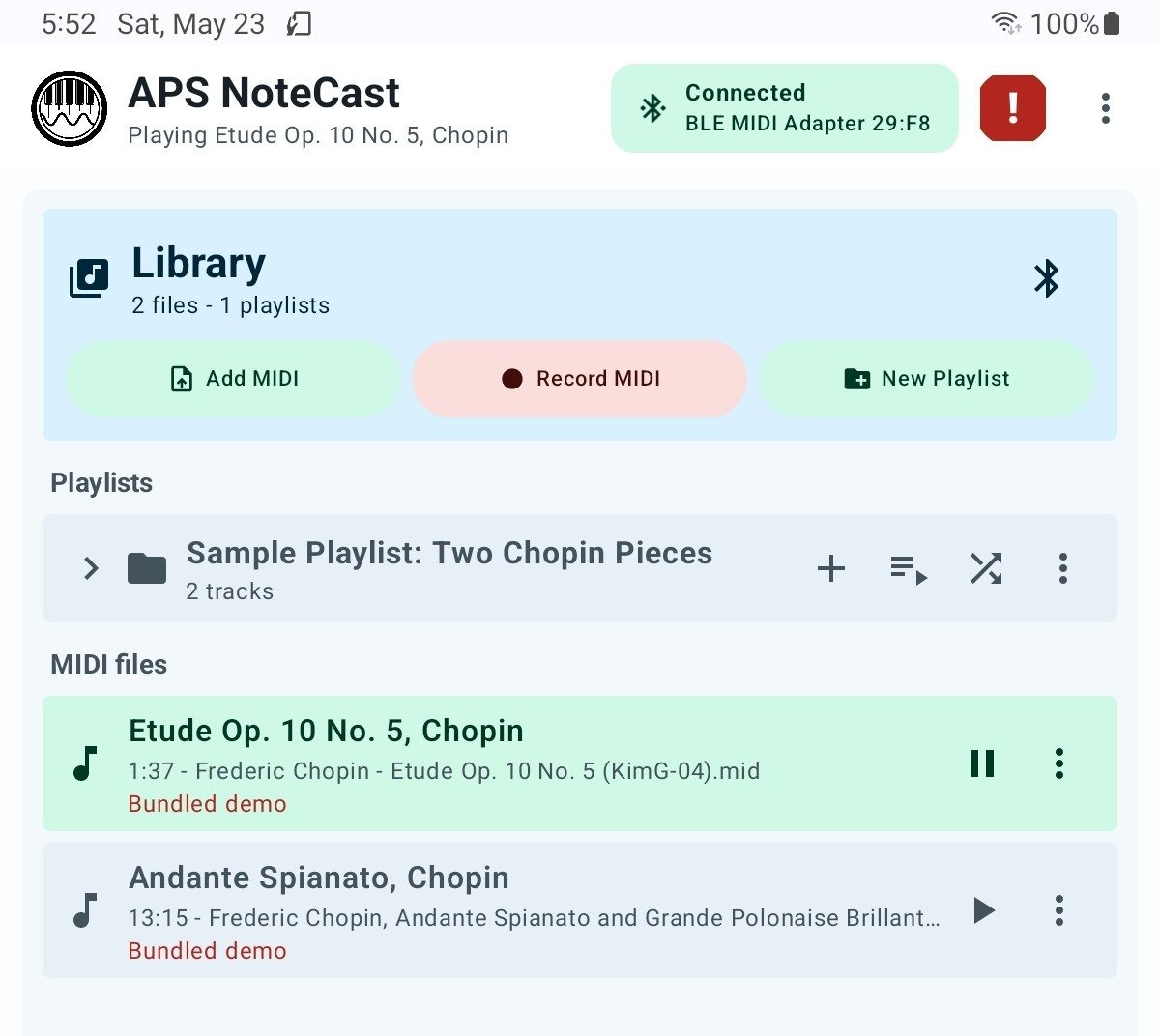
Play your music. Record your piano. Organize your collection.
APS NoteCast is designed to allow you to stream directly to your Yamaha Disklavier, PianoDisc, QRS System, or other instrument. It lets you send MIDI files from an Android phone or tablet to devices such as a Yamaha Disklavier, player piano, digital piano, or keyboard, using Bluetooth MIDI adapters or USB MIDI connections.
Start playing MIDI files with APS NoteCast
APS NoteCast lets you send MIDI files from an Android phone or tablet to a Disklavier, player piano, digital piano, or keyboard through Bluetooth MIDI or a compatible USB MIDI connection.
Connect an adapter
Attach a Bluetooth MIDI adapter or compatible USB MIDI device to the instrument.
Open NoteCast and connect
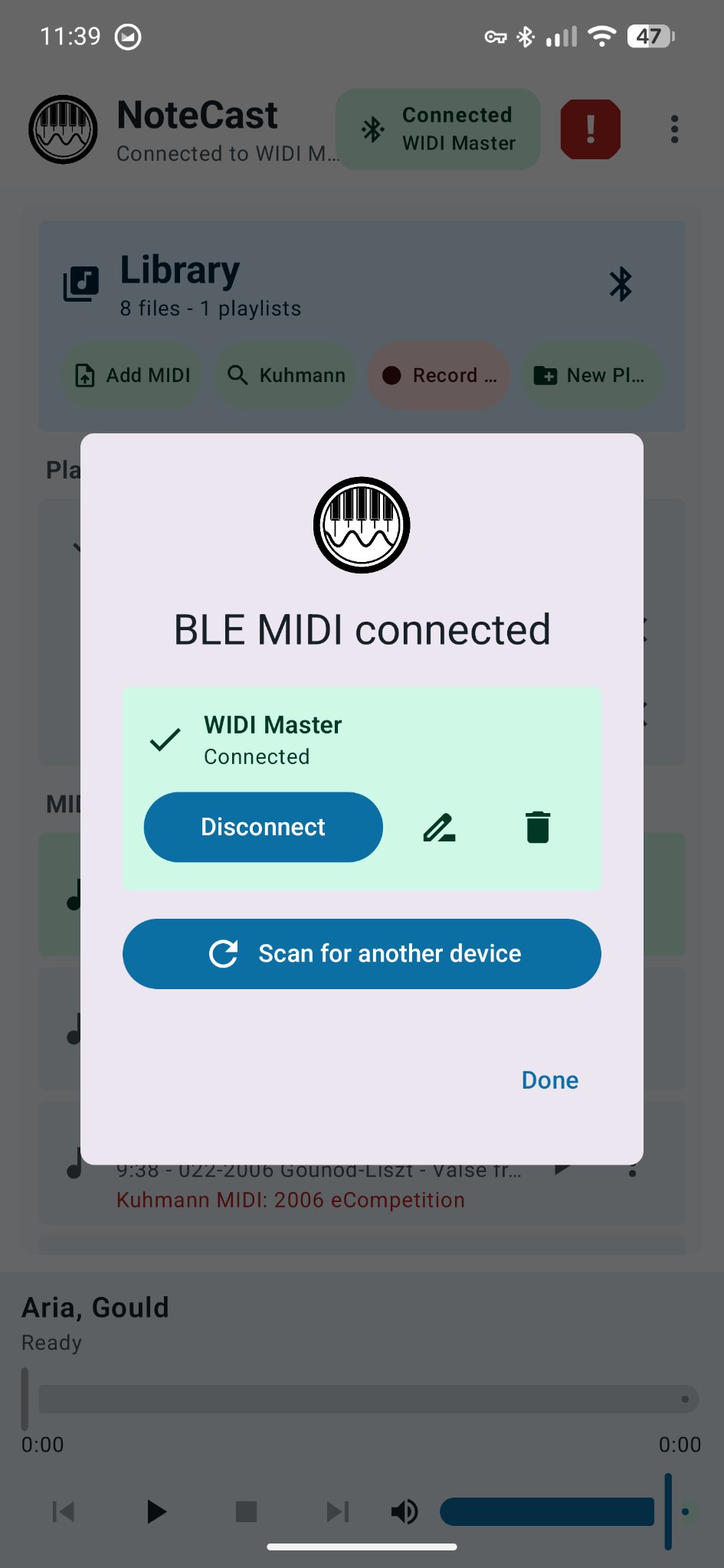
For Bluetooth MIDI, turn on Bluetooth, open APS NoteCast, scan, and connect to the MIDI device. For USB MIDI, open APS NoteCast and select the USB device from the list.
Choose a MIDI file and play
Import a file or use a demo song, then test Play and Stop at low volume.
What you need
The basics
- An Android phone or tablet
- APS NoteCast
- A piano or keyboard that can receive MIDI
The connection
- A Bluetooth MIDI adapter, or
- A compatible USB MIDI connection
- Use the adapter guide below to choose the right hardware
Which adapter do I need?
Choose based on the connections on your piano or player system.
Round 5-pin MIDI IN and MIDI OUT
Common on Yamaha Disklaviers, PianoDisc and QRS systems, and many older digital pianos and keyboards.
Use: CME WIDI Master
If WIDI Master does not power on, use a CME WIDI Jack instead; it can be powered separately by USB-C.
Square USB-B port labeled USB TO HOST
Common on newer Yamaha Clavinova, CVP, Arius and P-series instruments and many other modern digital pianos.
Use: CME WIDI Uhost
You may also need the USB-B cable pack.
USB TO DEVICE? That’s the flash-drive port, not the USB MIDI connection described here.
How to connect APS NoteCast
First-time setup
- Connect the adapter and turn on the piano.
- For Bluetooth adapters, turn on Bluetooth on the Android device.
- Open APS NoteCast and allow Bluetooth or Nearby Devices access.
- If using USB, tap your USB device in the Connect menu. For Bluetooth, tap Scan, then tap Connect.
- If Android asks to pair, accept the pairing request.
- Confirm the adapter shows as Connected.
Test before real use
- Select a demo song or import a MIDI file.
- Start with the volume low.
- Tap Play and confirm the piano responds correctly.
- Tap Stop and make sure notes and pedals release.
- If anything hangs, tap Stop twice.
Safety note: A player piano moves real keys and pedals. Before using a long playlist or unattended playback, confirm that Play and Stop all behave correctly while you are standing beside the instrument.
Need MIDI files?
APS NoteCast works with standard MIDI files. If you have Yamaha E-SEQ files
such as .FIL or .MDA, convert them first.
APS NoteCast is now available for public download on the Google Play Store!


Alternatives to Google Play?
The app is currently available as a separate APK, which can be side-loaded. You can download the APK from GitHub directly here. For most users, Google Play is the recommended installation method because updates are delivered automatically. The GitHub APK is available for users who prefer to sideload the app.
Questions?
Contact me if you have trouble installing APS NoteCast or connecting it to your MIDI device.
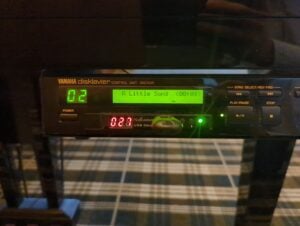
I really appreciate the work you have done with this app. I’ve been trying it with the DKC55RCD on my piano (along with the CME MIDI Master).
One problem, however:
If I play MIDI files using the Disklavier tone generator, everything comes out good. But, if I want it to actually play the piano, the notes play, but the damper pedal does not.
Is this as expected/designed? Am I missing something? Is something on the piano malfunctioning?
I’d appreciate some insights on this. Thanks!
Hi Lloyd,
Thank you for the kind words and the report! First, make sure you’re running the latest NoteCast update. There should be another update releasing in the next couple of days as well. Meanwhile, here are a few things I’d check:
Check FUNC. > MIDI Setup > Piano Part > Piano Rcv Ch. The HP setting expects piano data on channels 1 and 2, with half-pedal data on channel 3 (Advanced Operation Manual, p. 58).
In NoteCast, tap the three dots near the upper-right corner and select Settings. If your Mark III is set to HP and you’re playing Yamaha music, Fold pedals into piano channel should normally be turned off. But since the pedals aren’t behaving, I’d also try turning it on and running the built-in Pedal Test.
On the Mark III, make sure pedal playback hasn’t been disabled. Hold PART L + PART R; if the display shows PDoff, hold them again until it shows PD on (Basic Operation Manual, p. 41).
Finally, if the WIDI Master is connected to the DKC55RCD’s MIDI IN, make sure the rear-panel HOST SELECT switch is set to MIDI. It presumably is if you’re getting notes at all, but it’s worth double-checking.
Please let me know if any of those fix it, and keep me updated!
Thank you!