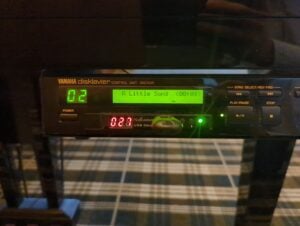
The Yamaha Disklavier is a sophisticated piece of technology, but typically, you’re limited to Yamaha’s song library. Many Yamaha songs include both a piano part for the Disklavier and an accompanying music track, though the Disklavier piano part might differ dramatically from the original piano part in the song. In many cases, the piano tracks are recorded as accompaniments by artists, and are either added to songs that didn’t have piano originally, or that are designed to augment rather than to replace the piano in the original recording.
Important: Note that the below instructions are for the Yamaha ENSPIRE.
If you’re using an E3 / DKC-800 / DKC-850, you will have the additional steps of encoding the MIDI and WAV files using Mark Fontana’s MID2PianoCD. With the E3, you’ll have to burn this file onto a CD. On the Mark IV, you can actually play the files MID2PianoCD generates right off of a USB stick.
I recently had a customer ask if I could figure out a way for the Disklavier to play the piano portion of a particular song that was important to him.
To achieve this, I used five programs: first, Spleeter by Deezer to isolate the piano and separate it from the other components of the song, and then Audacity, a powerful open-source tool, to edit and combine the non-piano tracks. I chose to use the service Ivory to convert the piano audio to MIDI. I used FluidSynth to generate audio from MIDI for testing and timing. Finally, I used Ardour to adjust the timing in the MIDI to perfectly sync it with the audio.
As an alternative to Ivory, Onsets and Frames can be locally installed. This software is dated (2018), and there are many frustrations with attempting to run such an old Python program, so I opted not to use this solution. However, if you have a high-end system with a powerful GPU and the free time to get it running, it’s a free option.
Separating the Tracks
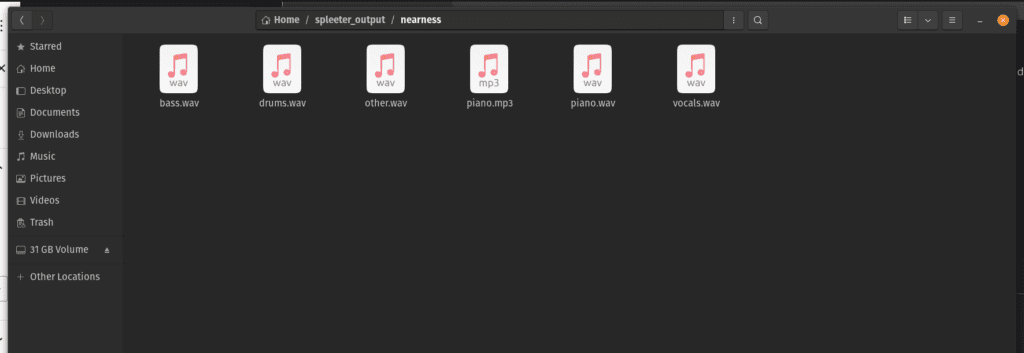
I used the 5stems model in Spleeter, which allows you to individually separate the piano. See the instructions below.
spleeter separate -o ./tmp -p spleeter:5stems "sample.wav"
Recombining the Tracks
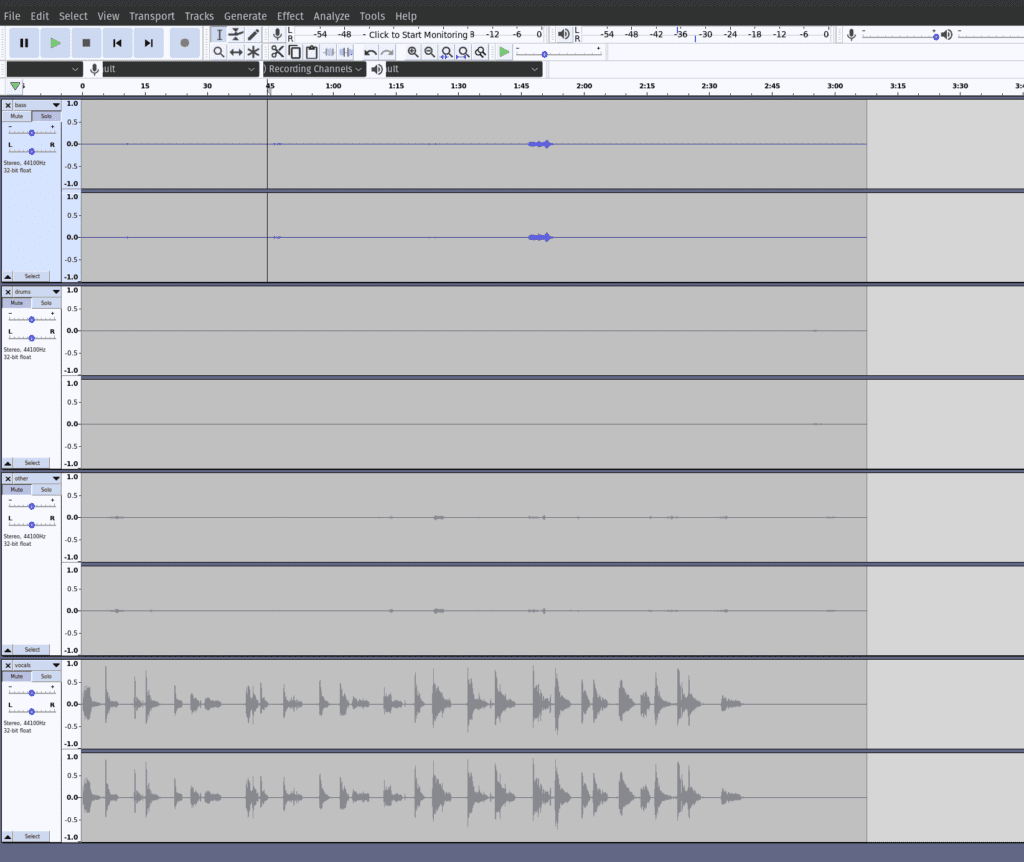
After reviewing each track, I found only the bottom vocals track had usable audio; the others were filled with artifacts, so I simply removed them. However, in songs with more instrumentation, this would be an important step. Review the tracks, listen to them individually, and remove any artifacts you can, applying filters as necessary.
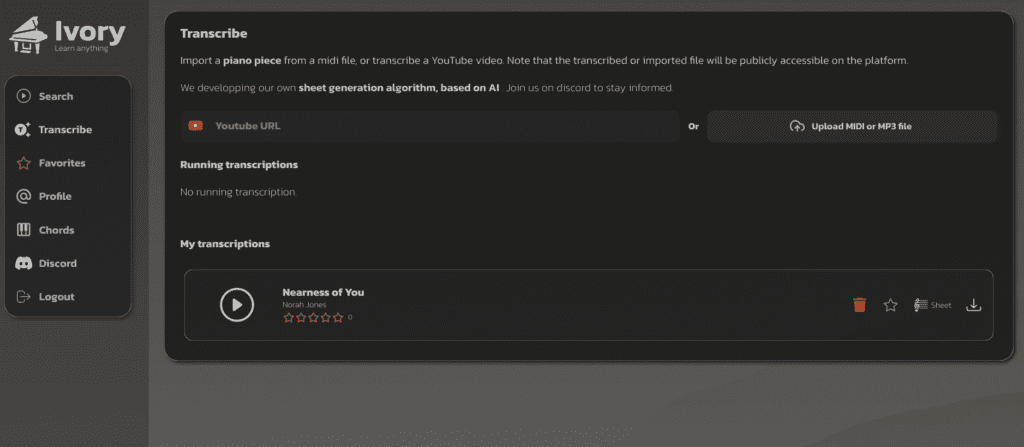
Next, I used the Ivory App to transcribe the piano audio track. Ivory is an AI-driven piano transcription tool that converts piano audio into sheet music or into MIDI files. Utilizing advanced deep neural networks, it offers high transcription accuracy. I converted my piano.wav file (produced by Spleeter) into an mp3, and then uploaded it to Ivory.
Syncing the Audio
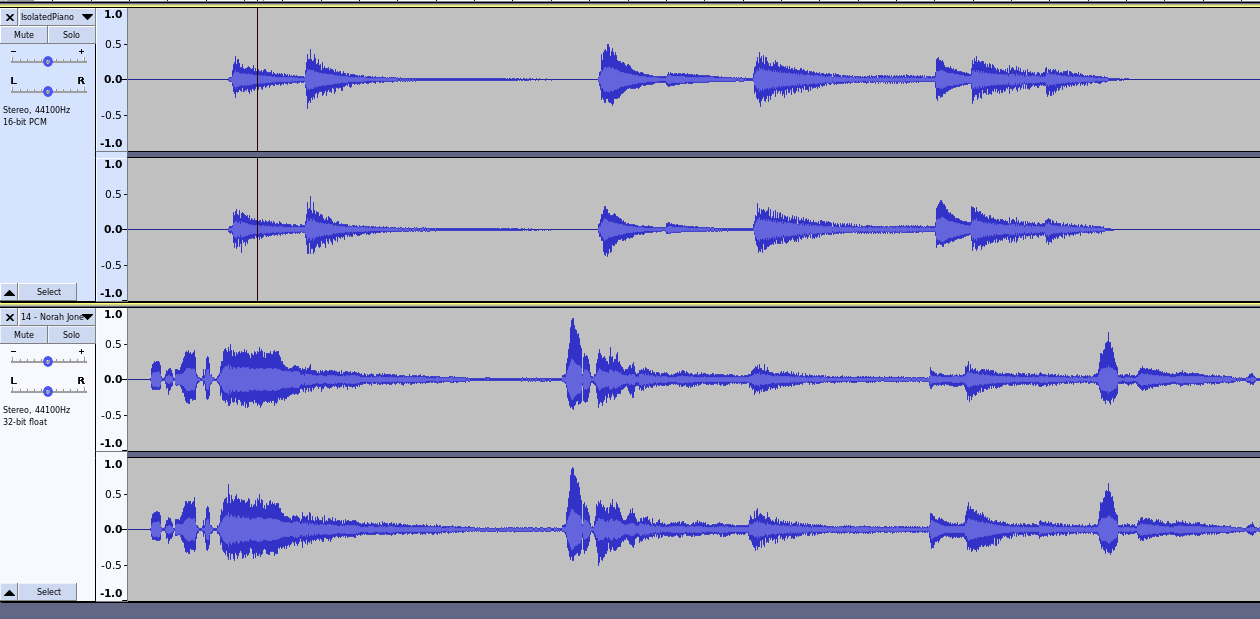
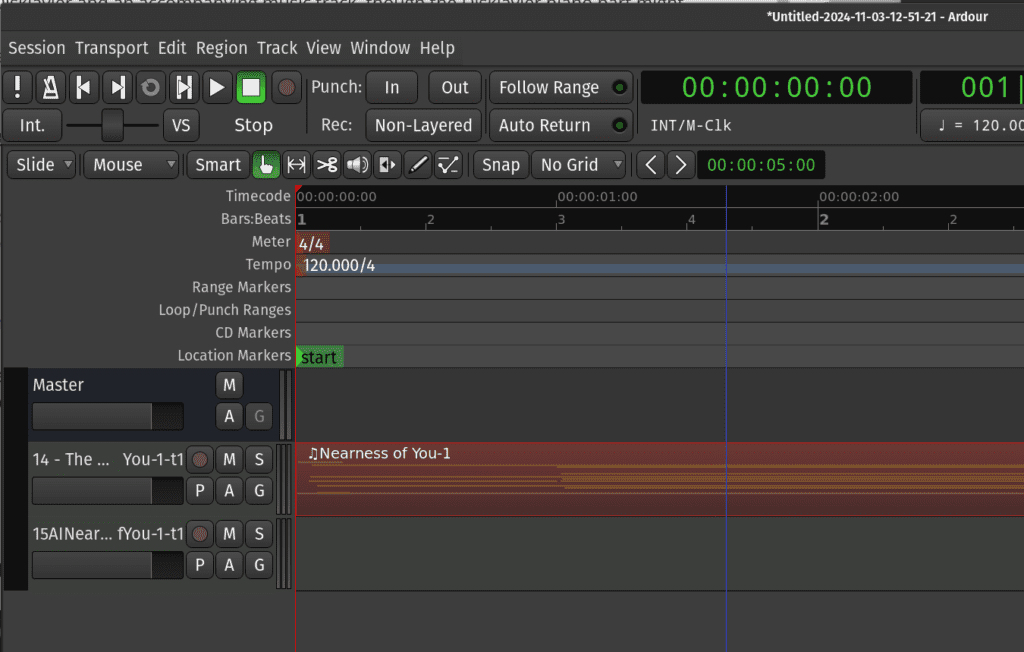
After downloading the MIDI file, I found that the MIDI file did not properly sync with the audio. In order to solve this, I synthesized the audio (using FluidSynth with Yamaha C7 samples). I then imported this into Audacity, and played the isolated piano alongside the original audio. I moved the audio back and forth to determine exactly how much time had to be added to properly sync the two pieces.
fluidsynth /path/to/soundfont.sf2 /path/to/DownloadedMIDI.mid --fast-render=/path/to/IsolatedPiano.wav
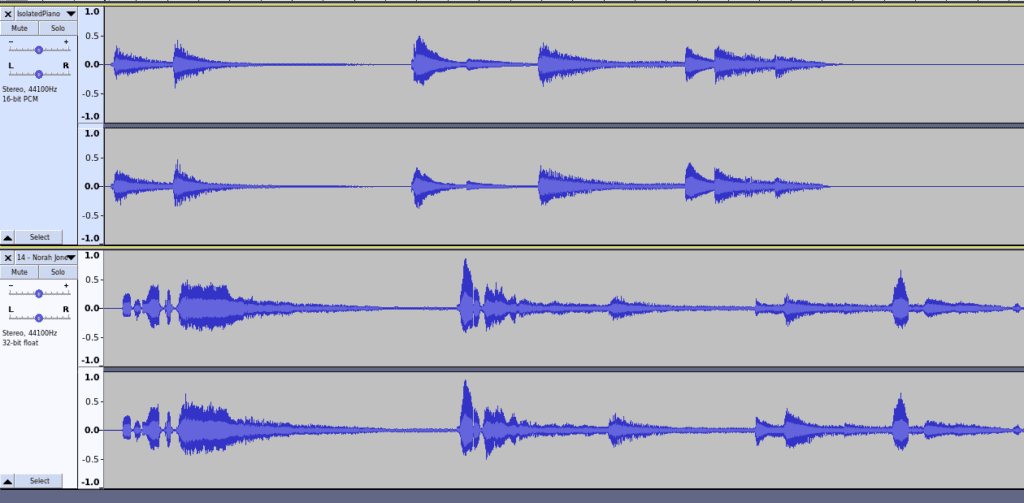
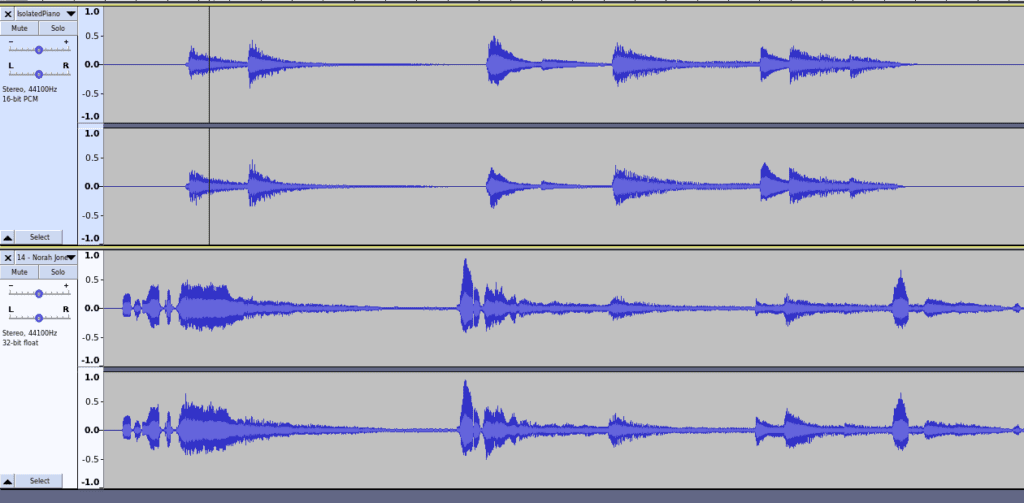
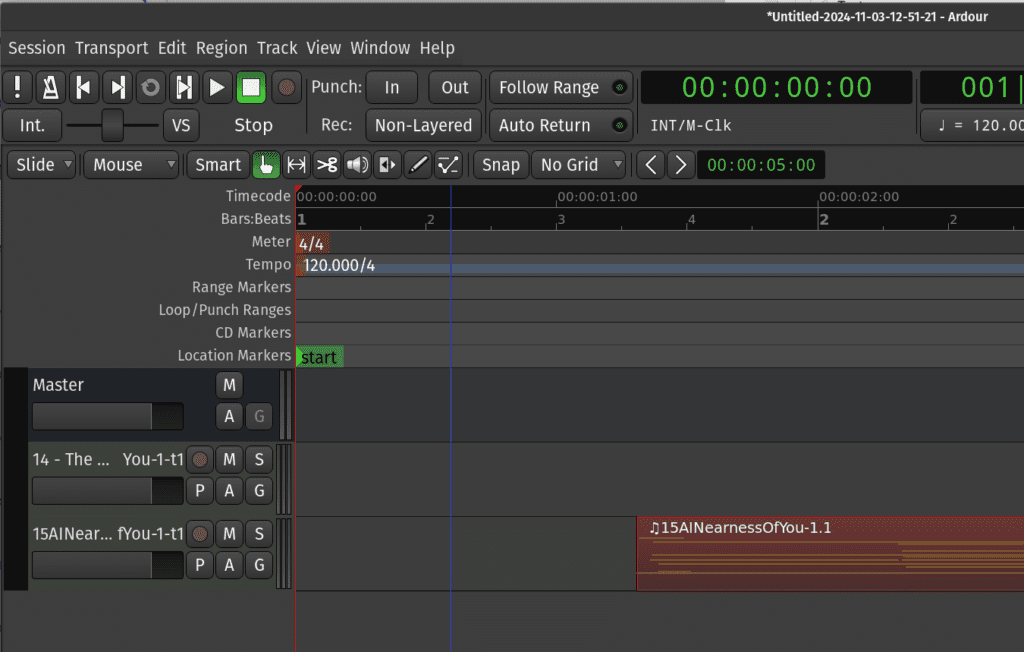
After carefully adjusting the audio which I’d synthesized from the MIDI file in Audacity, I determined that the MIDI file needed a total of 1.150 seconds added to it. This is a decimal fraction, rather than seconds in 60ths of a second, which is how Ardour determines time.
If the clock is in Timecode mode at 60 fps:
1.150 seconds = 00:00:01:09
because 0.150 × 60 = 9 frames.
Just take the decimal component of the number (.150, in this case), and multiply it by 60. In this case, we end up with 1:09 seconds. Now we have a number we can use in Ardour.
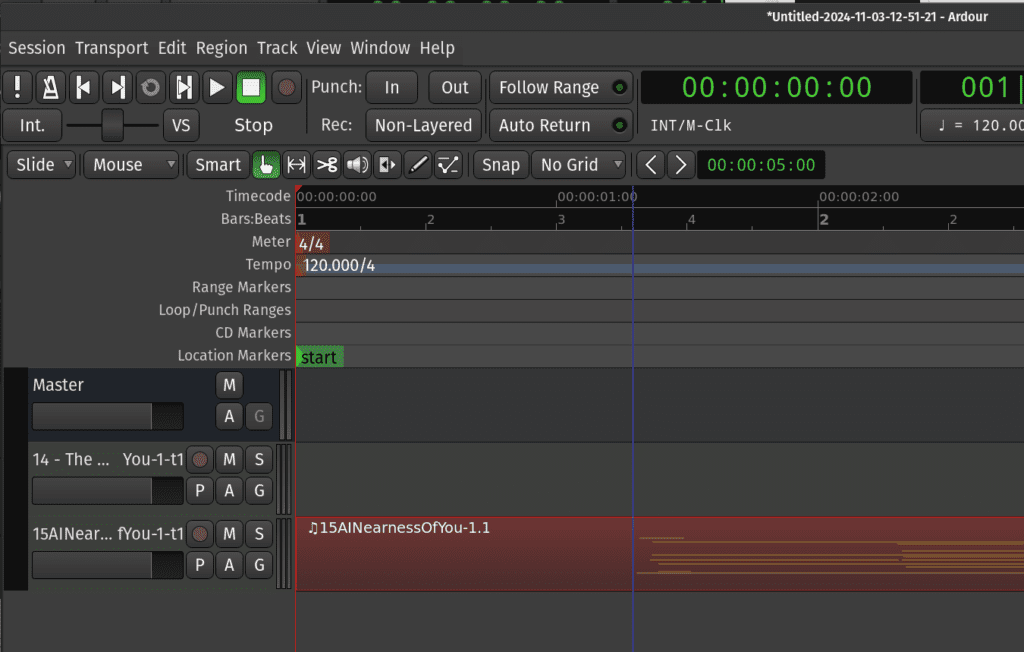
Name the MIDI file from Ivory and the piano-free audio from Audacity identically, and transfer them onto a USB stick. The properly named files will look something like this:
01MySong.mid
01MySong.mp3Code language: plaintext (plaintext)
Your ENSPIRE Disklavier will play the files together provided the filenames are identical (except for the extension).
Your Disklavier is now ready to play both files in sync! The keys will move to the isolated piano track, and the audio will play alongside it without any competing piano sounds.
If You Have an E3 / DKC-850: Why the USB Method Will Not Play Audio
On E3 / DKC-850 systems, USB playback is designed for MIDI and E-SEQ song files. The “audio + moving keys” experience you get from certain Yamaha titles works differently.
Yamaha’s PianoSoft PlusAudio titles use a special format that includes:
- An analog-encoded MIDI channel (to move the keys)
- An audio channel (for accompaniment and vocals)
That is not the same thing as placing a normal MP3 file next to a MIDI file on a USB stick.
You can, however, still generate a working file. You’ll just need to use Mark Fontana’s MID2PianoCD to generate the combined audio/encoded-MIDI file, and then burn that to an audio CD. He has excellent instructions on his website.
If You Are Using ENSPIRE / DKC-900 and Still Do Not Hear Audio
- Confirm the USB stick is formatted FAT16 or FAT32.
- Confirm the audio file is .wav (44.1kHz / 16-bit stereo) or .mp3.
- Confirm file extensions are correct:
.midfor MIDI and.wavor.mp3for audio. - Confirm both files have identical base filenames (example:
01MySong.midand01MySong.wav).
What a tantalizing piece, thank you very much indeed. I wish you were in England!
With my best regards,
Georges
Dr Georges Kaye
Hello Dr. Kaye, and thank you very much!
Yes, very interesting. Hope you are staying warm up in beautiful Maine.
Hi Alexander,
Awesome article! I was having trouble installing and getting Spleeter working, so I tried Lalal.ai instead to separate the piano track. Then I used Ivory to convert the piano.mp3 to midi. Lastly, I used Ardour to sync the midi to the mp3 audio. I followed your instructions to have the exact name on both files, and I placed them on a USB stick. But my piano only plays the MIDI on the keys; the MP3 audio file does not play. I have a DKC-850. Both the mp3 and the midi file play fine on my computer. Other Yamaha provided CDs play both the keys and the audio (I think the midi is embedded in one channel of the audio file in this case, rather than two separate files). Is there something I am missing? Are there any settings on the piano, or anything that needs to be added to the midi file to make this work? Thanks!
Hello Robert! Thank you for the kind words.
This article applies to the ENSPIRE / DKC-900 generation, which can pair a MIDI file and an audio file on a USB stick and play them together. Although both the newer ENSPIRE and earlier Mark IV can do this, the DKC-850 (E3) does not have that capability. I’ll update the article to make that clearer.
The E3 can play audio and MIDI instructions concurrently, but they have to be encoded properly and burned onto a CD. In that format, the audio is on one channel and the MIDI data (encoded as an analog signal) is on the other.
Mark Fontana wrote a program that does exactly this called MID2PianoCD. You drop your MIDI file and your audio file into it, and it creates a WAV file that you then burn to a standard audio CD. It’s an extra step, but the work you’ve already done gives you exactly the files you need.
And I’ll have to look into lalal.ai as well, so thank you for that tip!
I appreciated the detail about isolating piano first and checking timing after audio-to-MIDI conversion. It is easy to focus on the converter or plugin and forget that the quality of the original recording usually determines how much cleanup is needed later.
Hello Edmund,
Thank you for reaching out! Yes, the original recording is the most important factor. Clear, isolated piano is much easier to convert to MIDI than layered pieces with multiple instruments or background noise.
Thank you!