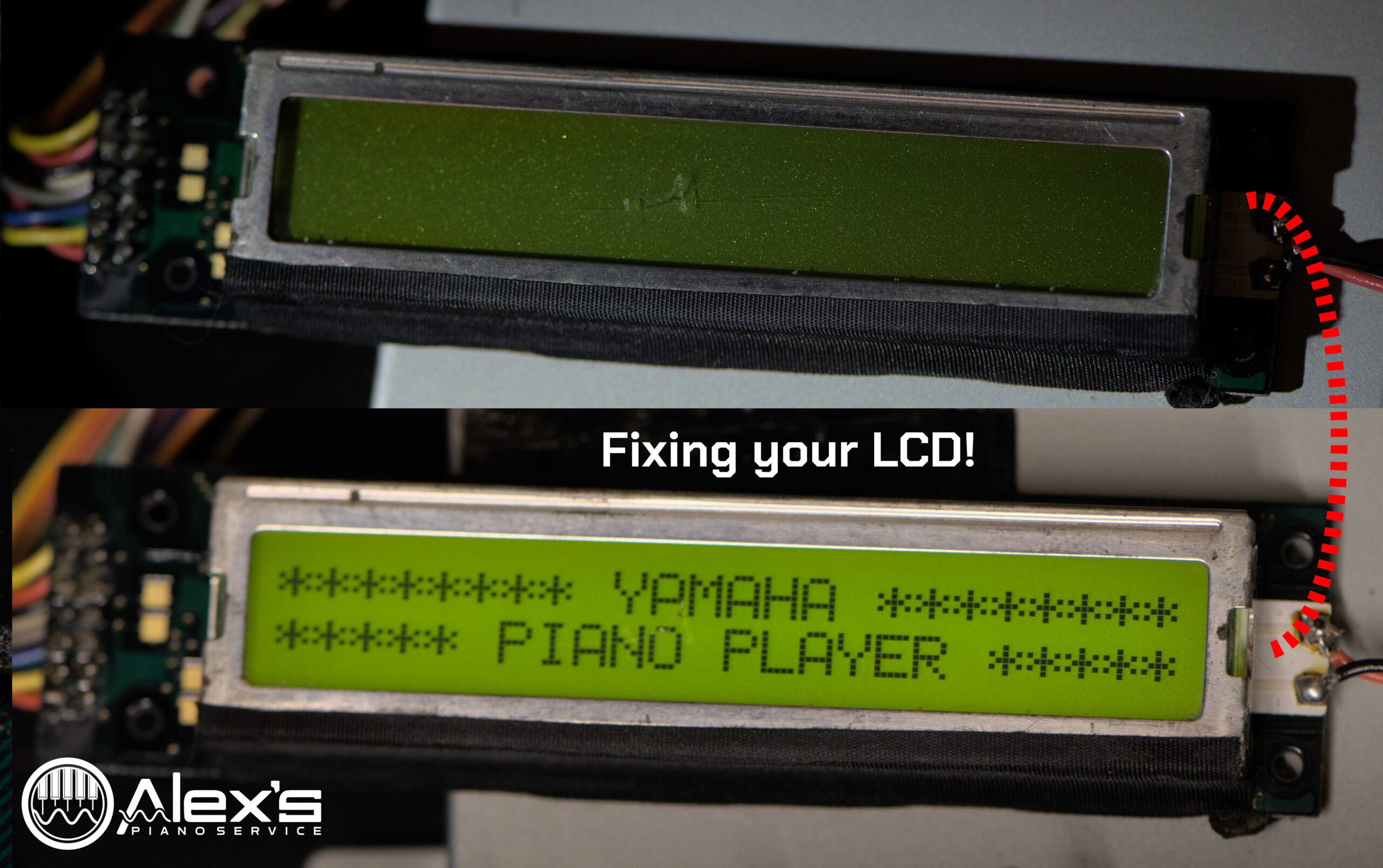
A blank LCD screen can render your Yamaha MX-100II Disklavier nearly unusable. You can replace these with brand-new LCD screens, which are still available. In the MX-100II and HQ-100SX, this is Yamaha part VN635201, although it differs for other units. As of February 20, 2026, the screens are not available on Yamaha 24×7—it appears they stopped listing them in 2025. I still see them listed on Synth-Parts. But the issue is often fixable with a simple capacitor replacement.
Before You Solder: Quick Checks
Before ordering parts or heating up the iron, take a minute to confirm the symptoms:
The backlight is on, but no characters appear. This is common on these units and often points to the small electrolytic capacitors on the display board.
The Disklavier otherwise has power and works. This can be hard to test, as sometimes older Disklaviers also have failed floppy disk drives. If you have an upright Disklavier, you can try turning the volume all the way down—you should see the hammers move closer to the strings (as though you were pressing the left pedal). This helps to demonstrate that the Disklavier is otherwise working, even when the LCD and floppy drive fail at the same time.
Check the ribbon cable. I recently showed up at a customers house to replace one of these LCDs, only to discover it had somehow become partially unplugged! Power down, reseat the connector, and inspect for corrosion or contamination at the connector and on the LCD board.
If these checks don’t change the symptom, you’re much more likely dealing with the capacitor failure or a truly failed LCD.
Blown Capacitors and Blank LCD Screens
The Yamaha MX100II Disklavier relies on its LCD screen for displaying vital information and controls. Over time, the capacitors on the LCD’s circuit board can degrade or fail.
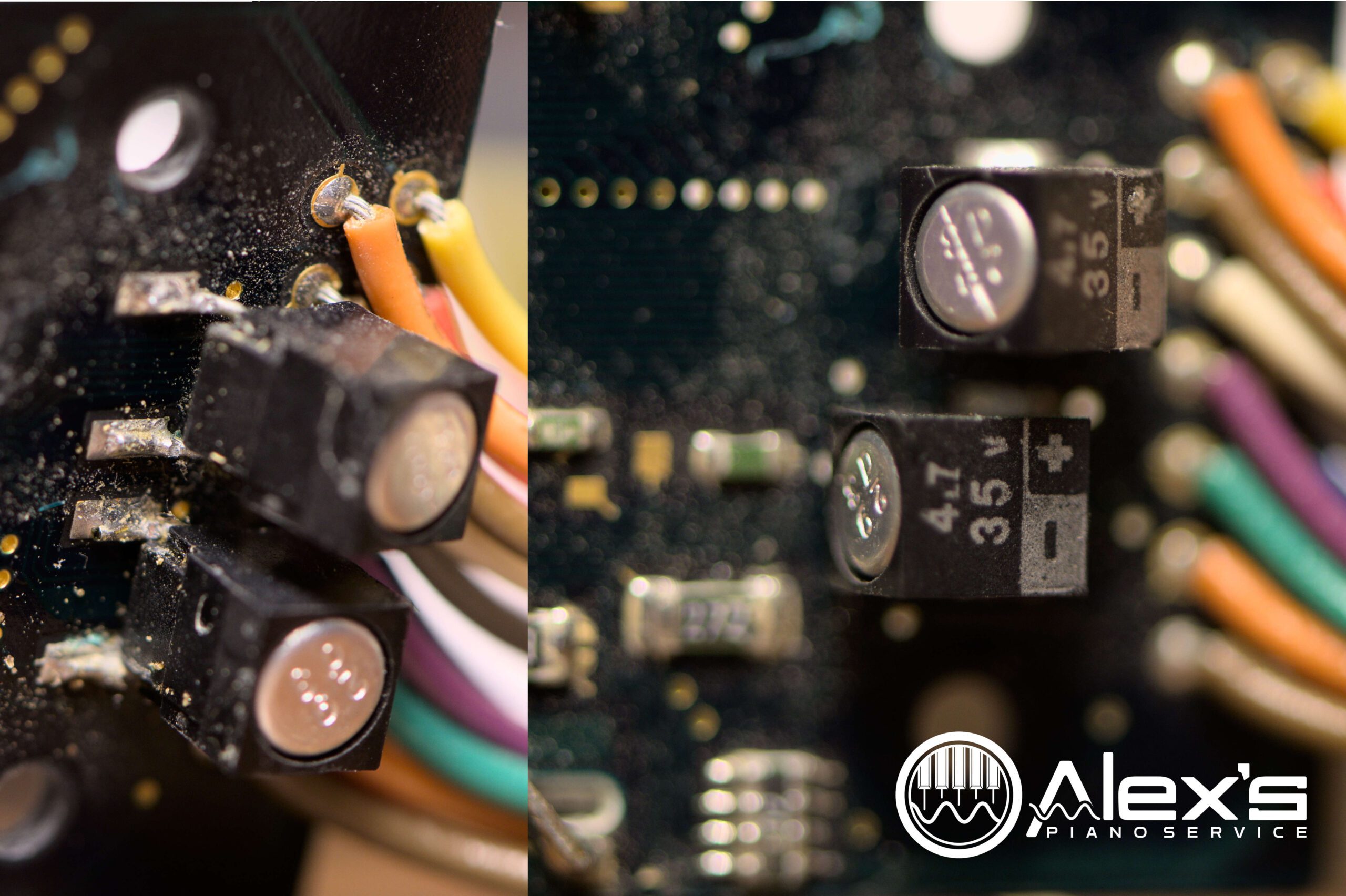
The problem is typically caused by two 4.7 µF 35V capacitors mounted on the LCD screen. Electrolytic capacitors are filled with electrolytic, which can dry out or leak over time. They are a common source of failure in all electronics.
The challenge here is that these capacitors are attached to two pads on the circuit board, more typically used for surface-mount components. They’re also quite small. Together, these details make replacing them a bit trickier than your average capacitor!

Choosing the Right Replacement Capacitors
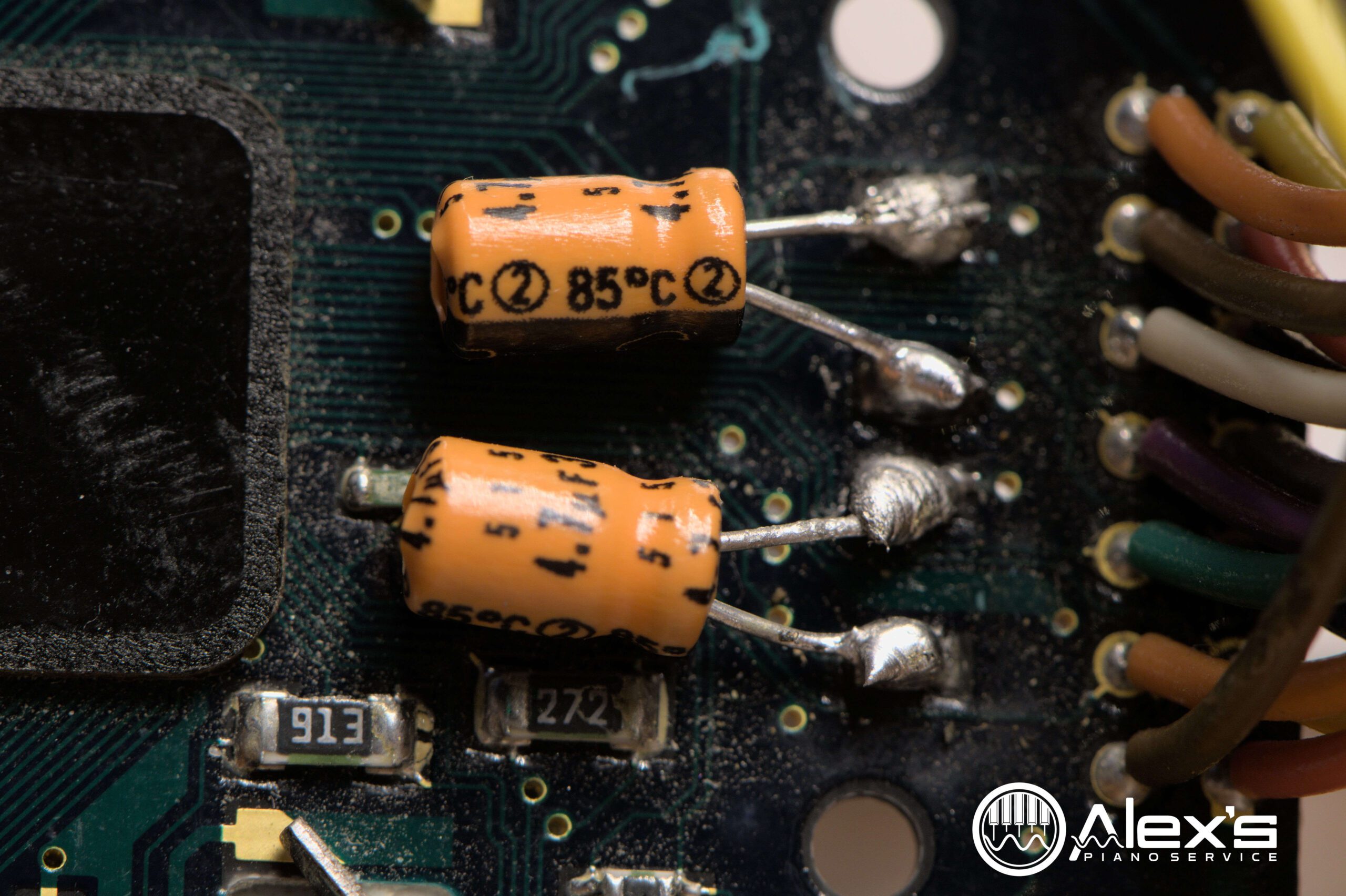
I replaced mine with 4.7 µF 35V Sprague capacitors, which will hopefully lead to longer life than the originals. Sprague capacitors are known for their reliability and long lifespan. Some hobbyists choose to replace the originals with 50 V capacitors, and this is fine, although they tend to be larger and more difficult to position.
Any 4.7 µF capacitor with a minimum of a 35V rating will work. They should also be rated for 105° C. Capacitors are available at minimal cost on Amazon. Be careful of generic capacitors, which might fail after a short time. If you do purchase capacitors from Amazon or eBay, avoid purchasing a kit with many values of capacitor. These are typically of lower quality.
The Replacement Process
Removing the old capacitors is fairly straight-forward: Touch the soldering iron to each joint, and guide the legs of the old capacitors free with a pair of tweezers. Use no force. Just melt the solder, and free the legs.
Take your new capacitors and lay them on the board. Carefully trim the legs of the capacitors so that they’re short enough the capacitors fit neatly on their sides. I recently received an email sharing that, if you’re bending the capacitors after attaching them, there’s a risk of tearing the solder pads off of the board.
Position the first capacitor. Make sure its polarity is correct. Bend the legs as necessary so that they rest delicately atop the solder pads. A fine pair of tweezers will help. (Hakko makes tweezers that are exceedingly precise and easy to handle.)
With fresh solder on the tip of your soldering iron, press the legs of the capacitors down onto the soldering pads. It’s very difficult to make a beautiful joint here, considering that these are surface-mount pads, rather than through-hole, and you’re using through-hole capacitors. But the main point is to bond them securely.
Later Improvements to the LCD Screen
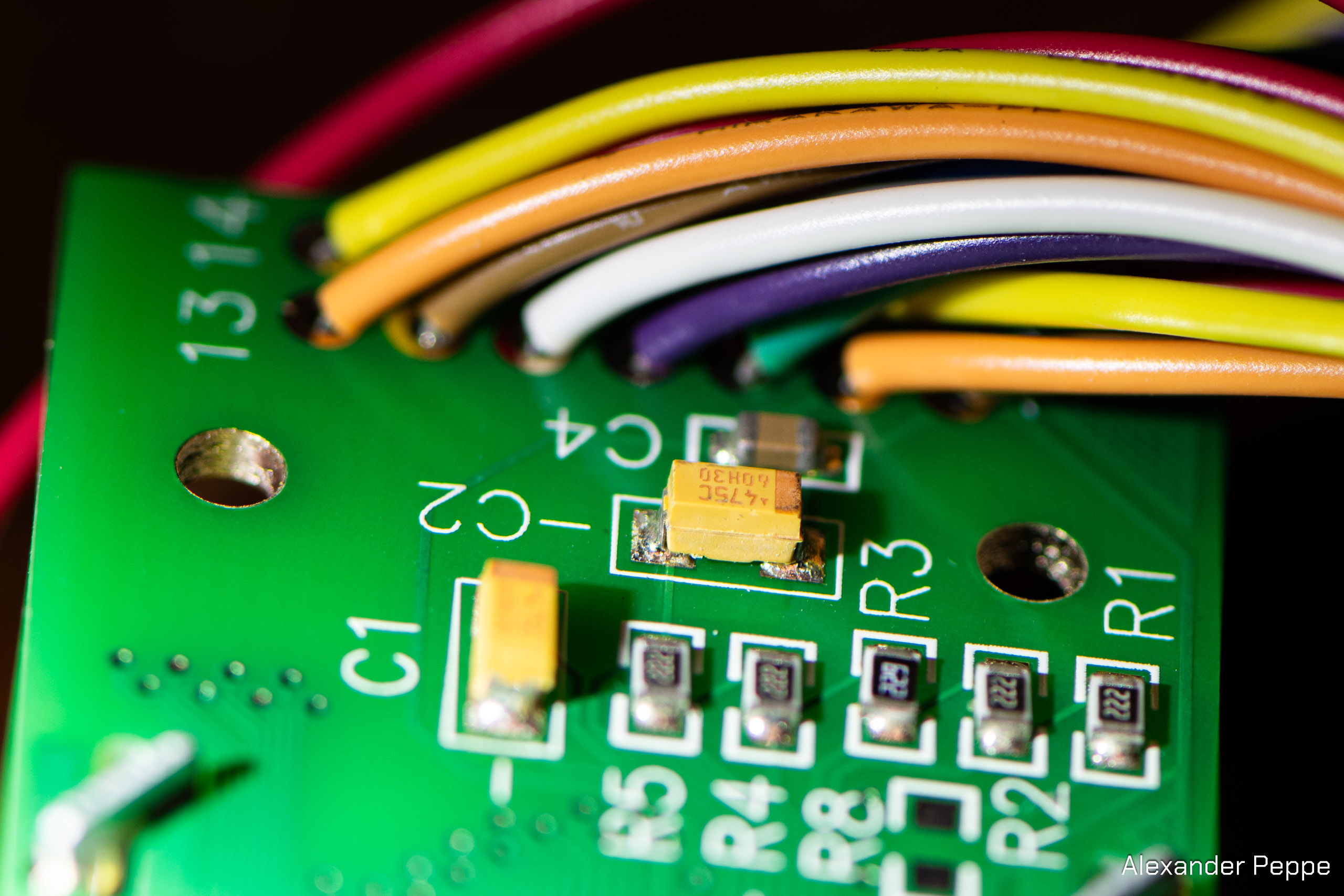
Yamaha stopped using electrolytic capacitors on these LCD screens. Newer replacements, such as the part number mentioned at the start of the article, use surface-mount capacitors—no leaky electrolytics. Therefore, if you opt to purchase a replacement screen, this particular problem will be far less likely.
Fragile Backlight Connections
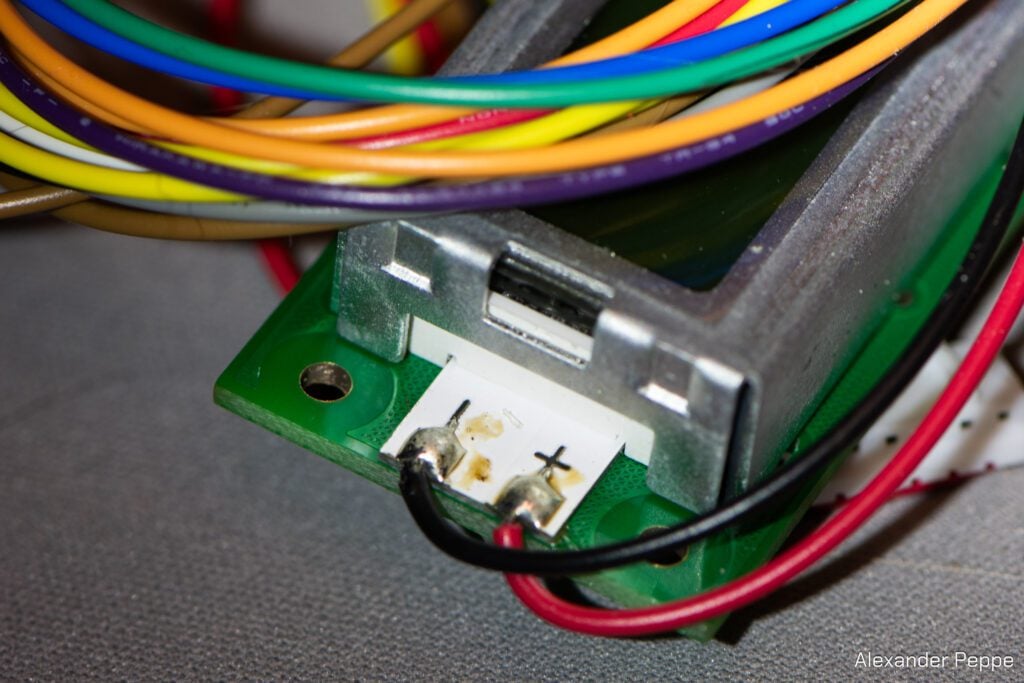
These two wires sometimes snap during the process of removing the LCD screen. This is a closeup of those joints. If they break off, strip the ends of the wire exposing new, sturdy bare wire, and resolder it. The polarity is written clearly on the board.